Quick Start: Sensor Set Up
1) Sonar-computer Ethernet connection
Connect the sonar to the computer through an Ethernet connection.
Warning
Never power on the sonar when it is not underwater. Connect the plug or switch on the power source only when the sonar is in the water. The electronics are built to work while surrounded by water (cooling system); the sonar heats up very quickly and can break if this is not respected.
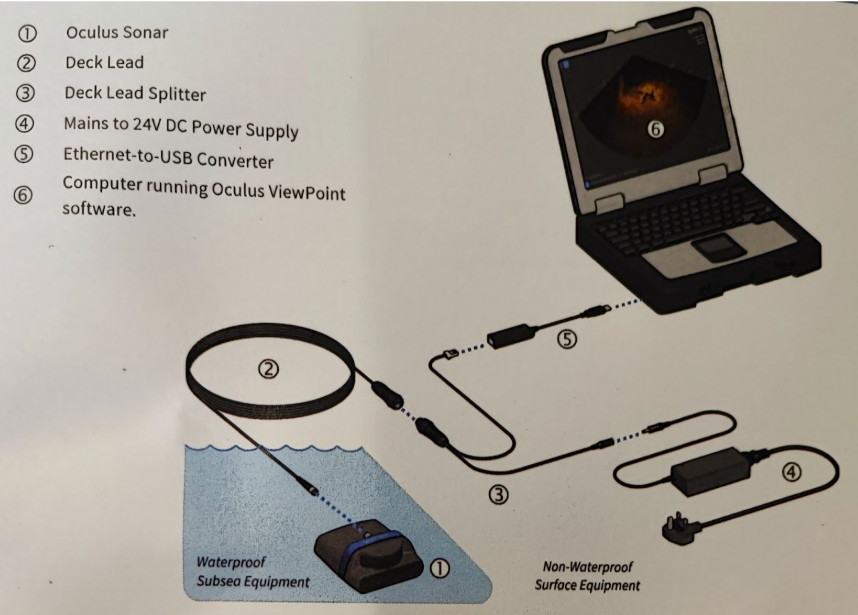
Fig. 2: Oculus sonar connection scheme. The computer (6) here runs the ROS2 driver (or the C++ one).
2) Configure the wired Ethernet connection
On your computer, configure the Ethernet connection in IPv4 with:
IPv4 Method:
ManualAddress:
x1.x2.x3.(x4+1), wherex1.x2.x3.x4is the sonar IPNetmask:
255.255.255.0
The sonar IP x1.x2.x3.x4 can be found by opening the
Oculus ViewPoint app and searching for the
connected devices. The sonar is discovered through the UDP port, and its IP is shown in the list of
devices.